
A black screen on a Samsung phone does not always indicate a hardware failure. In most cases, the issue stems from a software freeze, a completely drained battery, or a conflict related to a third-party application. Identifying the cause allows for the right action to be taken and avoids an unnecessary trip to a repair center.
Samsung Black Screen After Update: A Growing Problem Since 2025
Classic troubleshooting articles list generic tips without mentioning a recent phenomenon. Since mid-2025, users of Galaxy S24 and S25 Ultra have reported on official Samsung communities black screens or freezes on the logo occurring just after installing an update, particularly One UI 8.5 or certain security patches.
The typical scenario: the update installs, the phone restarts, and then the screen stays black or freezes on the Samsung logo. Forced restarts and prolonged charging do not always suffice. Several users report having to go to customer service despite these attempts.
If a black screen appears within minutes or hours following a system update, it should be considered that the cause is specifically related to this patch. The procedure then differs from a simple application freeze. A complete guide to fixing a black screen on Samsung details the appropriate actions for each situation, including incidents post-update.

Forced Restart Samsung: The Basic Action to Know
The forced restart remains the first action to attempt, regardless of the Galaxy model. The combination is the same on almost all recent Samsungs: simultaneously hold the power button (or side button) and the volume down button.
The point that many guides overlook: do not release the buttons when a menu appears on the screen. They should be held down for several seconds, even after the screen turns off. Release only when the Samsung logo reappears.
Why It Works
This action cuts power to the processor without going through the operating system. It does not erase any data. If the freeze is due to a temporary software bug, a frozen application, or a memory conflict, the forced restart resolves the issue without data loss.
If the phone does not respond on the first try, it should be repeated. Multiple attempts are sometimes necessary, holding the buttons for at least fifteen seconds each time.
Drained Battery or Black Screen: How to Distinguish Between the Two
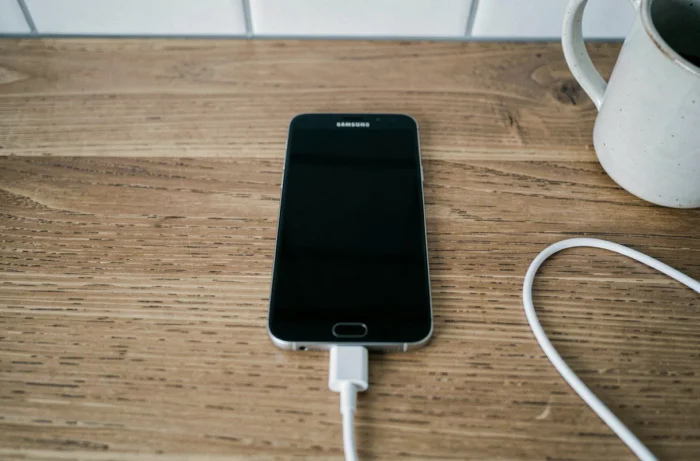
A black screen does not always mean the phone is frozen. It may simply be off, with a dead battery. Confusion is common because a Samsung with a completely empty battery does not respond at all during the first few minutes of charging.
- Plug the phone into its original charger (or a certified charger) and wait at least fifteen to twenty minutes before attempting to turn it on.
- Check that the cable and adapter work by testing them on another device. A faulty cable is a common cause of charging failure.
- Observe if a battery icon or notification LED appears during charging. The complete absence of reaction after thirty minutes of charging points to a hardware issue.
Attempting a forced restart on a phone with a dead battery will yield no results. Prior charging is a prerequisite that many users skip out of impatience.
Samsung Safe Mode: Isolating a Responsible Application
When the black screen recurs after each restart, a third-party application may be to blame. Safe Mode temporarily disables all user-installed applications and keeps only Samsung system applications.
How to Access It
Turn off the phone (or force it off using the button combination). Then, hold the power button to turn the device back on. As soon as the Samsung logo appears, release the power button and immediately hold the volume down button until the startup is complete. The mention “Safe Mode” will appear at the bottom of the screen.
If the phone operates normally in safe mode, the issue comes from a third-party application. You should then uninstall recently installed or updated applications one by one, restarting between each removal to identify the culprit.
When Not to Attempt Self-Repair
Samsung emphasizes in its 2026 guides a safety point absent from most troubleshooting articles. If the black screen is accompanied by abnormal heat, a burnt smell, a swollen battery, or liquid traces, do not attempt a prolonged forced restart or plug in the charger.
- Stop using the device immediately.
- Do not plug it into a power source.
- Go directly to an authorized Samsung service center.
- Do not store the phone in a confined space (drawer, closed bag) while waiting for repair.
These symptoms indicate a potential battery issue that goes beyond software troubleshooting. Persisting in restarting under these conditions increases the risk.
A black screen accompanied by a phone that vibrates or makes sounds when touched, on the other hand, confirms that only the screen is at fault (panel or connector), not the system. In this case, the phone works but displays nothing, and only a hardware intervention will resolve the issue.
The vast majority of Samsung black screens are resolved by a forced restart or patient charging. Recent post-update cases on Galaxy S24 and S25 constitute the exception that deserves special attention, especially for users who rely on their phone daily.