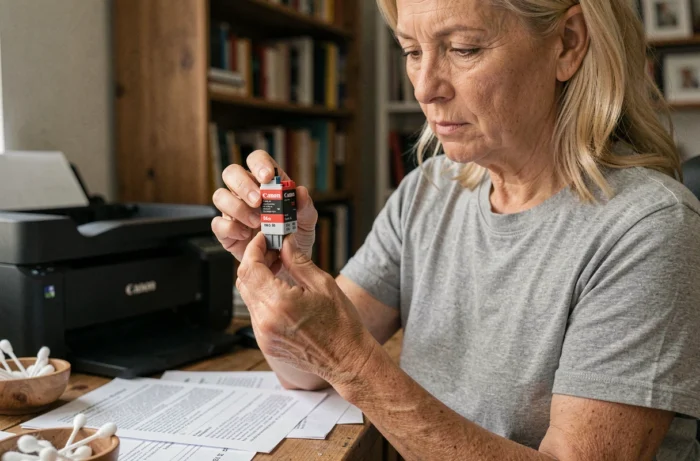
Canon ink cartridges incorporate an electronic chip that communicates with the printer to signal the remaining ink level. When this counter reaches zero, the printer may block printing, even if the cartridge still contains usable ink. There are two distinct operations to bypass this blockage: resetting the software counter via the printer driver, and physically resetting the chip on the cartridge itself. Confusing the two often leads to unnecessary manipulations.
Software Counter and Physical Chip: Two Different Resets on Canon
Canon documents in its online manuals the resetting of the remaining ink level counter, accessible from the printer driver or software. This manipulation is done entirely on-screen, without touching the cartridge.
The physical chip, on the other hand, is soldered onto the cartridge. It stores information about the consumed volume that the printer reads at each startup. When this chip indicates “empty,” the software counter alone is not enough to resume printing. It is then necessary to intervene directly on the chip, either with a dedicated tool (chipresetter) or through a specific key combination for the model.
Most online guides mix these two levels of intervention, which explains why some users follow a tutorial without results: they reset the software counter while it is the cartridge chip that is blocking. To properly reset a Canon ink cartridge, one must first identify which of the two mechanisms is causing the blockage.
Resetting the Canon Cartridge Chip with a Chipresetter: Compatibility and Limitations
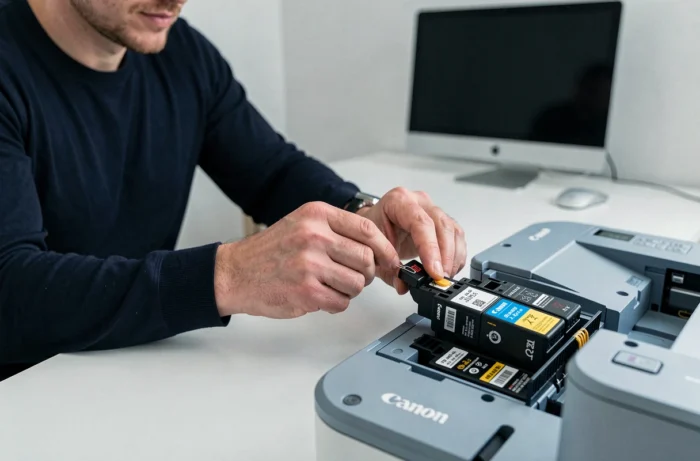
The chipresetter is a small device with metal contacts. The cartridge is inserted chip-side down, pressure is maintained for a few seconds, and a light confirms the reset. The principle is simple, but several technical constraints limit the effectiveness of this method.
Cartridges Compatible with the Chipresetter
Only cartridges with original Canon chips work with a standard chipresetter. Compatible cartridges (third-party brands) use different chips, often already programmed to indicate a fixed ink level. The so-called “SETUP” cartridges, supplied with the new printer, are also excluded: their chip includes specific firmware that does not respond to the reset.
Some chipresetters are designed for a specific range. For example, a model intended for the PGI-520 and CLI-521 series will not work on PGI-550 or CLI-571 cartridges. Checking the exact reference of the cartridges before purchasing a chipresetter avoids unnecessary expenses.
Concrete Manipulation
- Remove the cartridge from the printer and locate the chip (small gold plate on the bottom or side of the cartridge).
- Place the cartridge in the chipresetter aligning the chip with the contacts. For wider cartridges (type PGI), the device is used without an adapter; for narrow cartridges (type CLI), a plastic adapter is provided.
- Maintain downward pressure for a few seconds until the light turns green (or lights up red then goes out, depending on the chipresetter models).
- Reinsert the cartridge into the printer and start a cycle to check the ink levels.
If the light blinks without stabilizing, the contact between the chip and the chipresetter is poor. Cleaning the gold contacts of the cartridge with a dry, lint-free cloth resolves this issue in most cases.
Canon Reset via Service Mode: An Undocumented Method
Some Canon Pixma printers have a service mode accessible by a key combination at startup. This mode allows access to advanced maintenance functions, including resetting internal counters.
Canon does not document this mode in its consumer support. Procedures circulate on forums and video tutorials, with key sequences varying from model to model. On some Pixma models, it involves holding the Stop/Reset button while pressing the power button in a specific order. On others, it’s a different combination.
Software utilities like Canon Service Tool allow, once the printer is in service mode, to reset the ink absorber counter or the page counter. The actual compatibility varies greatly depending on the printer model and software version. A tool that works on a Pixma MG3650 may do nothing on a Pixma TS5050.
Field reports vary on this point: some users report a complete reset after a single manipulation, while others find that the printer returns to error after a few prints. The lack of official documentation makes diagnosis difficult when the procedure fails.
Refurbished Cartridges and Third-Party Chips: What the Reset Does Not Resolve
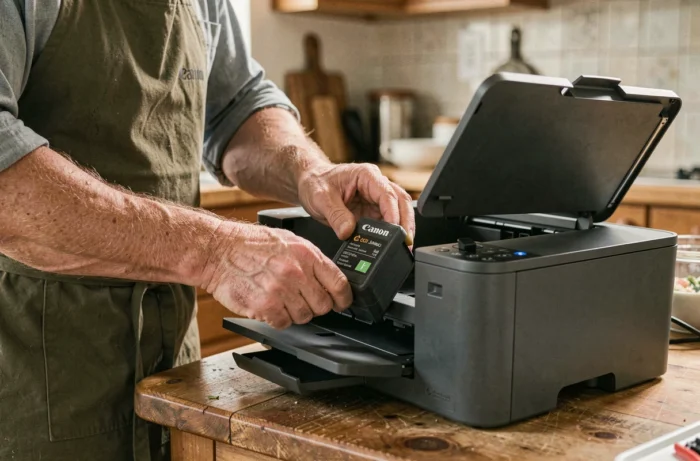
A manually refilled cartridge with compatible ink may work after a chip reset, but several situations escape this logic.
Compatible cartridges from third-party brands come with chips that do not respond to chipresetters designed for original Canon chips. These third-party chips are generally programmed to display a fixed ink level (often “full”) and do not require a reset. However, if the printer displays “unrecognized cartridge,” the problem rarely comes from the counter: it is often a physical contact issue or a chip incompatibility.
Before attempting a reset, check these simple points:
- The gold contacts of the cartridge and the carriage are clean and free of dried ink residue.
- The cartridge is inserted in the correct slot (each color has a dedicated slot on Pixma).
- The protective film has been properly removed (a common oversight on new or refurbished cartridges).
If these checks do not change anything, the chip itself may be damaged. A reset does not repair a burnt circuit.
Resetting a Canon cartridge remains an operation accessible at home, provided that the blockage (software or hardware) is precisely identified and that the appropriate tool for the specific cartridge model is available. For recent models, Canon tends to strengthen protections on its chips, gradually reducing the effectiveness of third-party reset methods.